
Introduction
Setting up Docker and Docker Compose on an Ubuntu derivative like Linux Mint can occasionally throw a wrench in your gears. The main culprit? The official Docker repository expects standard Ubuntu codenames (like jammy or noble), while your system identifies as virginia or wilma.
If you are an IT generalist managing a mix of workstations or just spinning up a local dev environment, you don’t want to manually tweak repository files every time.
To solve this, here is a production-ready, fully automated Bash script that handles the heavy lifting safely. It maps the correct underlying architecture, handles dependencies, grants non-root permissions, and spits out a clean installation summary at the end.
What the Script Handles Under the Hood
The script executes a strict four-step algorithm to keep your environment predictable:
- Docker Engine Check & Install: Probes for an existing installation. If missing, it safely extracts the underlying UBUNTU_CODENAME from /etc/os-release, maps the repository, and installs the engine.
- Docker Compose Check & Install: Installs the modern Docker Compose CLI plugin and sets up a legacy symlink (docker-compose) for backward compatibility with older automation tools.
- Permission Configuration: Inspects your current user’s groups. If you aren’t in the docker group, it adds you so you can drop the sudo requirement for daily tasks.
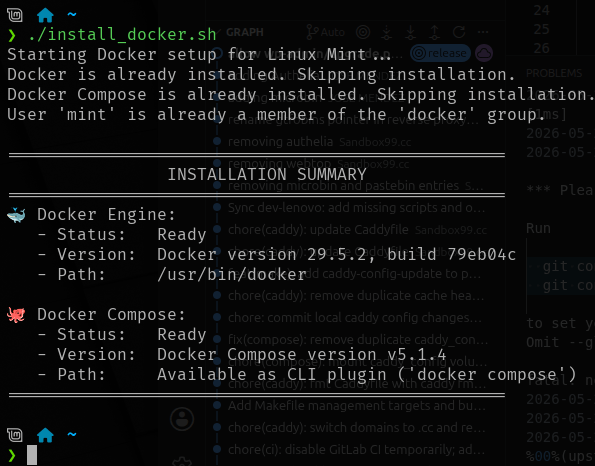
- Audit Summary: Runs a real-time post-install check, outputting exact installation paths and versions.
The Automation Script
Create a file named install-docker.sh and paste the code below:
#!/bin/bash

# Exit immediately if a command exits with a non-zero status
set -e

echo "🚀 Starting Docker setup for Linux Mint / Ubuntu Derivatives..."

# -----------------------------------------------------------------------------
# Step 1: Docker Engine Verification & Installation
# -----------------------------------------------------------------------------
if ! command -v docker &> /dev/null; then
    echo "🔍 Docker is not installed. Beginning installation..."

    # Install foundational dependencies
    sudo apt-get update
    sudo apt-get install -y ca-certificates curl gnupg

    # Establish the official Docker GPG keyring region
    sudo install -m 0755 -d /etc/apt/keyrings
    sudo curl -fsSL https://download.docker.com/linux/ubuntu/gpg -o /etc/apt/keyrings/docker.asc
    sudo chmod a+r /etc/apt/keyrings/docker.asc

    # CRITICAL STEP FOR DERIVATIVES: Extract the underlying Ubuntu codename
    . /etc/os-release
    UBUNTU_CODENAME=${UBUNTU_CODENAME:-$VERSION_CODENAME}

    echo "📦 Detected underlying Ubuntu codename: $UBUNTU_CODENAME"

    # Register the official stable Docker repository
    echo \
      "deb [arch=$(dpkg --print-architecture) signed-by=/etc/apt/keyrings/docker.asc] https://download.docker.com/linux/ubuntu \
      $UBUNTU_CODENAME stable" | sudo tee /etc/apt/sources.list.d/docker.list > /dev/null

    # Pull package metadata and install Docker core suite
    sudo apt-get update
    sudo apt-get install -y docker-ce docker-ce-cli containerd.io docker-buildx-plugin

    echo "✅ Docker Engine core installed successfully."
else
    echo "ℹ️  Docker Engine is already installed. Skipping deployment."
fi

# -----------------------------------------------------------------------------
# Step 2: Docker Compose Verification & Installation
# -----------------------------------------------------------------------------
if ! docker compose version &> /dev/null && ! command -v docker-compose &> /dev/null; then
    echo "🔍 Docker Compose missing. Deploying modern CLI plugin version..."
    sudo apt-get update
    sudo apt-get install -y docker-compose-plugin

    # Create symlink for backwards-compatible scripts using legacy syntax
    sudo ln -sf /usr/libexec/docker/cli-plugins/docker-compose /usr/local/bin/docker-compose

    echo "✅ Docker Compose plugin installed successfully."
else
    echo "ℹ️  Docker Compose is already present. Skipping deployment."
fi

# -----------------------------------------------------------------------------
# Step 3: Non-Root Permissions Auditing
# -----------------------------------------------------------------------------
USER_ADDED_TO_GROUP=false
if ! groups "$USER" | grep -q '\bdocker\b'; then
    echo "🔒 User '$USER' lacks non-root Docker execution rights. Adjusting groups..."
    sudo groupadd -f docker
    sudo usermod -aG docker "$USER"
    USER_ADDED_TO_GROUP=true
else
    echo "ℹ️  User '$USER' is already a verified member of the 'docker' group."
fi

# -----------------------------------------------------------------------------
# Step 4: System Audit & Verification Summary
# -----------------------------------------------------------------------------
echo -e "\n=================================================="
echo "                INSTALLATION SUMMARY              "
echo "=================================================="

# Verify Docker Engine Status
DOCKER_PATH=$(which docker 2>/dev/null || echo "Not found")
if [ "$DOCKER_PATH" != "Not found" ]; then
    DOCKER_VER=$(docker --version 2>/dev/null)
    echo -e "🐳 Docker Engine:"
    echo "   - Status:   Ready"
    echo "   - Version:  $DOCKER_VER"
    echo "   - Path:     $DOCKER_PATH"
else
    echo -e "🐳 Docker Engine:\n   - Status:   Installation failed or binary missing"
fi

# Verify Docker Compose Status
COMPOSE_PATH=$(which docker-compose 2>/dev/null || echo "Not found")
if [ "$COMPOSE_PATH" = "Not found" ] && docker compose version &>/dev/null; then
    COMPOSE_PATH="Available natively via CLI plugin ('docker compose')"
fi

if docker compose version &>/dev/null || docker-compose version &>/dev/null; then
    COMPOSE_VER=$(docker compose version 2>/dev/null || docker-compose --version 2>/dev/null)
    echo -e "\n🐙 Docker Compose:"
    echo "   - Status:   Ready"
    echo "   - Version:  $COMPOSE_VER"
    echo "   - Path:     $COMPOSE_PATH"
else
    echo -e "\n🐙 Docker Compose:\n   - Status:   Installation failed or binary missing"
fi

echo "=================================================="

# Post-Execution steps if permissions shifted
if [ "$USER_ADDED_TO_GROUP" = true ]; then
    echo -e "\n⚠️  ACTION REQUIRED: Your user account was added to the 'docker' group."
    echo "   To avoid logging out of your desktop session, refresh your groups now:"
    echo "   👉 run: newgrp docker"
fi
Deployment Guide
To run this on your target machine, execute the following steps in order:
1. Save the Code:Create the script asset.
Open your favorite text editor, paste the script code from above, and save it locally as install-docker.sh.
2. Grant Execution Rights:Modify file permissions.
Run chmod +x install-docker.sh in your terminal to turn the text file into an executable payload.
3. Execute the Script:Do NOT run with sudo.
Execute the script as a regular user by running ./install-docker.sh.
Note: The script will safely elevate via internal sudo prompts when downloading or installing packages. Running the entire script under sudo will break the configuration by mapping the root user instead of your normal profile.
4. Reload Shell Context:Activate permissions immediately.
If the summary layout flags a group update, run newgrp docker to inject the new group privileges into your active terminal shell without needing a full system reboot.
Below is the sample screenshot that I’ve already run again.
Why This Approach Matters for IT Professionals
As someone dealing with system deployments, handling edge cases gracefully is critical.
- The Mismatch Trap: Most generic installation copy-pastes use $(lsb_release -cs). On Linux Mint, that outputs names like uma or wilma, causing the subsequent apt-get update to throw a fatal 404 error against Docker’s servers. By sourcing /etc/os-release and evaluating $UBUNTU_CODENAME, this script ensures cross-compatibility across Pop!_OS, Elementary OS, Linux Mint, and any other downstream Debian/Ubuntu distribution.
- Modern vs. Legacy Compose Syntax: The script actively installs the contemporary V2 engine plugin layout while dropping a clean structural symlink into /usr/local/bin. No matter if your existing automation tooling relies on the older docker-compose up or the modern native docker compose up, your workflows will continue to work perfectly.