

Introduction
If you’ve been using Claude for a while, you’ve probably run into the same frustration: you start a new chat, and Claude has zero idea who you are, what you’re working on, or what conventions you follow. Every session starts completely cold. For casual use, that’s fine. But for IT professionals managing documentation, codebases, or runbooks? It gets old fast.
That’s exactly the problem Claude Projects was designed to solve.
Projects launched in September 2024, but at the time, it was a paid-only feature — something reserved for Claude Pro subscribers and above. Free users could see it mentioned in the interface, but couldn’t take advantage of it. That changed in a meaningful way: in February 2026, Anthropic opened up Projects (and Artifacts) to everyone — not just paying users.
So if you’re on the free plan right now, Projects is fully available to you. The catch? Free users can create a maximum of five projects. That’s enough to cover most individual workflows, but it does mean you’ll want to be intentional about how you organize things — and we’ll cover exactly that in this post.
Whether you’re a sysadmin juggling documentation, a developer working across multiple repos, or a network engineer maintaining runbooks, Claude Projects can seriously level up how you work with AI. Let’s dig in.
What Are Claude Projects?
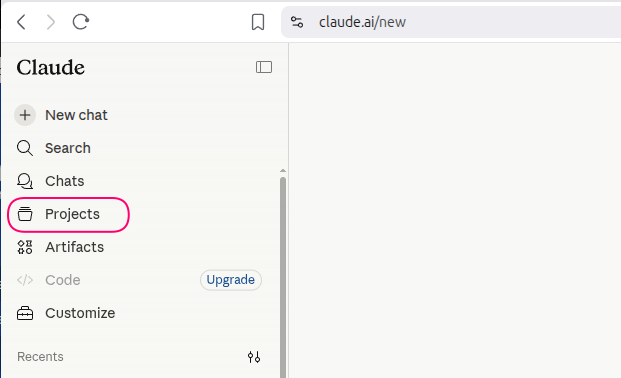
At its core, a Claude Project is an isolated, persistent workspace within Claude. Think of it as a dedicated folder for a specific context — it has its own chat history, its own uploaded files, and its own set of instructions that stay in place across every conversation you have inside it.
Before Projects existed, every new chat with Claude was a blank slate. You’d have to re-paste your documentation, re-explain your naming conventions, or re-describe your environment every single time. Before Projects, every Claude conversation started from scratch — you had to re-explain your work, your writing style, or the context of your task each time you started a new chat.
Projects eliminates that friction. Here’s what makes up a Project:
Knowledge Base
This is where you upload your reference files — think architecture diagrams, internal docs, config templates, code snippets, or policy documents. You can upload relevant documents, text, code, or other files to a project’s knowledge base, which Claude will use to better understand the context and background for your individual chats within that project.
Individual files can be up to 30MB each. Claude doesn’t load everything at once — it uses retrieval-based reasoning to pull only the most relevant content into the active context per query, which keeps things efficient.
Project Instructions
This is your persistent system prompt. You define it once, and it applies automatically to every chat within that Project. You define formatting preferences, tone requirements, and behavioral guidelines once — and every conversation within that Project automatically follows these rules without reminders.
For IT pros, this is incredibly powerful. You can tell Claude things like:
“You are helping manage infrastructure for a Linux environment running RHEL 9. Always use
firewalldsyntax. Assume the user has sudo access. Responses should be concise and include command examples.”
Claude will carry that context across every conversation inside that Project — no re-explaining required.
Isolated Chat History
Related discussions stay grouped by project — and each Project operates independently. A Work Project cannot access information from a Personal Project. That separation keeps your contexts clean, though it does mean you can’t cross-reference between Projects.
Practical Use Cases for IT Professionals
Here’s where this gets fun. Let me paint a few scenarios that should feel familiar.
🖥️ Sysadmin Documentation Hub
Create a Project called “Server Admin – RHEL” and upload your internal runbooks, hardening checklists, and config templates. Set the instructions to reflect your environment (OS version, standard tools, naming conventions). Now whenever you need help troubleshooting a service, writing a cron job, or checking a config, Claude already knows your environment.
No more copy-pasting 300 lines of context at the start of every session.
💻 Developer Codebase Assistant
Create a per-project workspace for your active codebase. Upload your README, architecture overview, key modules, and coding standards doc. Set instructions like “use Python 3.12 type hints and follow PEP 8.” Every PR review, debugging session, or documentation task in that Project picks up right where you left off.
🌐 Network Engineer Runbook Reference
Upload your network topology diagrams, VLAN tables, firewall policies, and change management templates. Claude becomes a reference assistant who already knows your environment — handy for drafting change requests or troubleshooting unusual routing behavior.
🔒 Security Policy Assistant
Create a Project loaded with your organization’s security policies, compliance requirements (e.g., CIS Benchmarks), and audit templates. Use it to draft policy documents, cross-check configurations, or prepare for audits — with Claude already understanding your compliance baseline.
Best Practices
Getting the most out of Claude Projects comes down to a few key habits:
1. One Project Per Distinct Workflow
Resist the urge to dump everything into one giant Project. Creating one massive project for everything defeats the purpose of organization. Create separate projects for distinct workflows. A dedicated Project per environment or use case keeps Claude’s context focused and your results sharper.
For free plan users with a 5-project cap, choose your five workflows carefully. Focus on the ones where you most often need recurring context.
2. Write Strong Project Instructions
This is the single highest-value thing you can do. Think of Project Instructions like a system prompt you write once and never have to repeat. Be specific:
- State the OS, stack, or environment
- Define the expected output format (e.g., “always include a code block”)
- Set the tone (e.g., “concise, no filler text”)
- Mention what Claude should avoid (e.g., “don’t suggest GUI tools; this is a headless server”)
The more precise your instructions, the less you’ll need to course-correct mid-chat.
3. Keep Your Knowledge Base Lean
More files isn’t always better. Claude uses retrieval to pull the most relevant content per query — but if your Knowledge Base is cluttered with outdated docs, you might get stale or conflicting information surfaced. Review your uploads periodically and remove anything no longer accurate.
4. Plan Around the 5-Project Limit (Free Plan)
If you’re on the free plan, you’ve got five slots. Use them wisely:
- Prioritize workflows with the most repetitive context needs
- Avoid creating throwaway Projects for one-off tasks — those are better handled in regular chats
- Consider a “general IT” Project for miscellaneous tasks rather than creating a new one for every topic
5. Be Careful with Archiving
This one’s important: archiving a project may make it completely unavailable to free users — archived projects can disappear entirely and may not be accessible from chat history either. If you need to free up a slot, consider exporting or copying any important content from that Project before archiving it.
Final Thoughts
Claude Projects is one of those features that fundamentally shifts how you think about working with AI. Instead of treating Claude like a search engine you query once and forget, Projects lets you build a persistent, context-aware assistant tailored to your specific environment.
The fact that it’s now available on the free plan — even with a five-project cap — is a genuine win. For most individual IT professionals, five well-organized Projects cover the bulk of daily AI-assisted work.
Start simple: pick your most repetitive context-heavy workflow, create a Project for it, write solid instructions, and add a couple of relevant documents. You’ll notice the difference within the first few conversations.
If you’ve been using Claude as a one-off chat tool, it’s time to graduate to Projects.