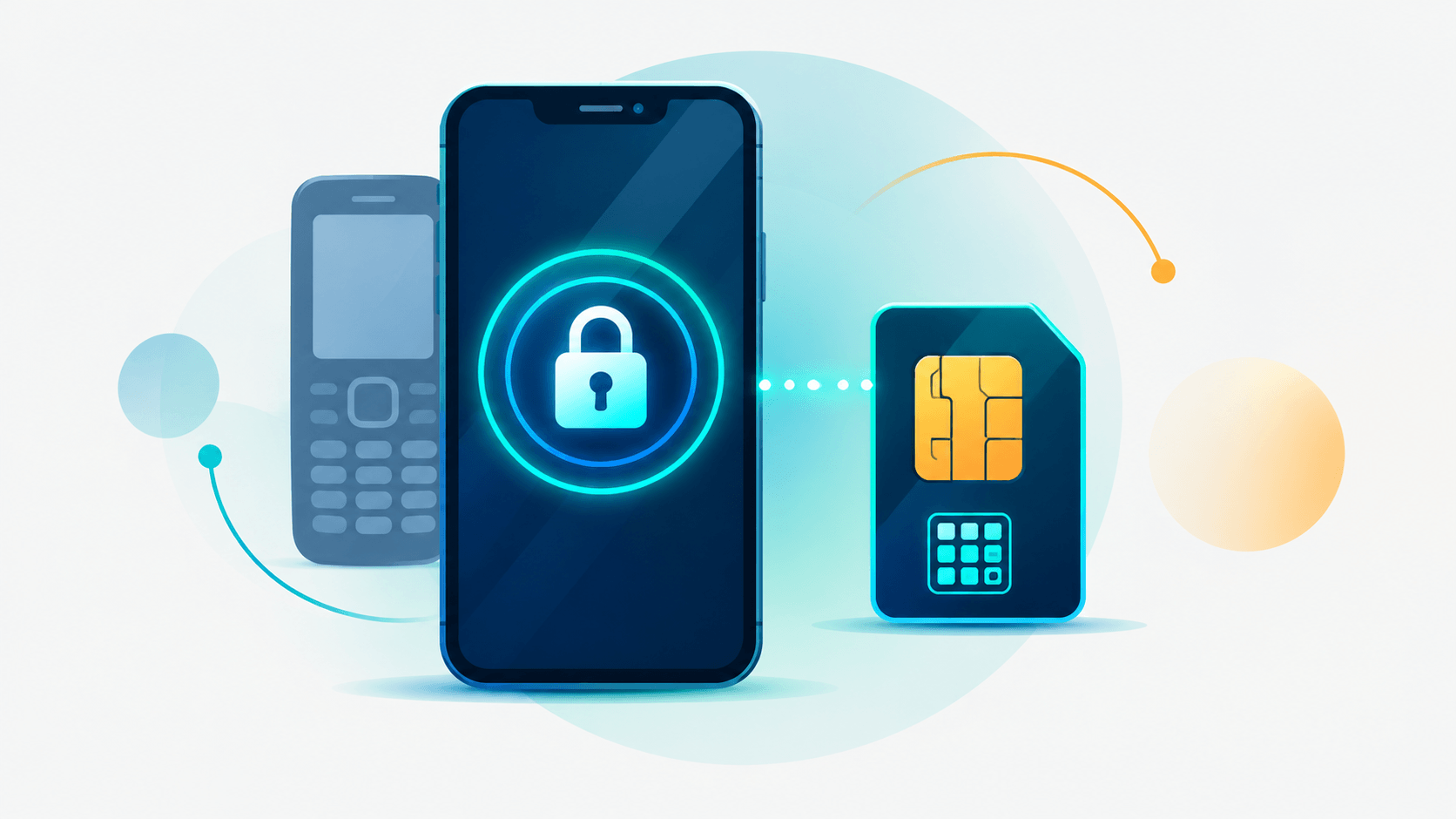
The Forgotten Security Layer: Why You Need a SIM PIN in the Smartphone Era
Back in the late 1990s and early 2000s, phones like the indestructible Nokia 3210 and the rugged Nokia 5210 were everywhere. Many SIM cards from that era shipped with a PIN already set, and you could find your default code on a scratch-off card before making your first call or playing a round of Snake.
Threats were different back then. If someone stole your phone or SIM, the usual damage was a drained prepaid balance or a few unauthorized international calls.
Today, our phones hold our entire digital lives. Yet many carriers ship SIM cards with the SIM PIN turned off, and most people never think about it.
Why Your Phone Number Is a Security Key
Your phone number is now a digital identity key. Plenty of services use it for two-factor authentication (2FA) through SMS:
- Online banking and digital wallets
- Primary email accounts
- Social media profiles
- Password resets for important services
Your screen lock and Face ID or fingerprint protect the device itself. They do not protect the SIM card. Someone who pops the SIM tray open with a paperclip and slides your card into another phone can receive your SMS codes, and those codes are often the last step in a password reset.
A SIM PIN adds a passcode to the SIM itself. After every reboot, or whenever the SIM moves to another device, the phone asks for the PIN before it connects to the cellular network.
What a SIM PIN Does (and Doesn't) Protect
Before you set one up, know its limits.
A SIM PIN helps when:
- Someone physically removes your SIM and puts it in another phone. They cannot use the line without the PIN.
- Your phone restarts and someone tries to use the SIM without knowing the code.
A SIM PIN does not help when:
- An attacker convinces your carrier to move your number to a SIM they control. This is called a SIM swap or port-out fraud. The attack happens at the carrier, so the PIN on your phone never comes into play.
- Your number is stolen through social engineering of a customer service agent or a store employee.
That second scenario is where most real-world SIM takeovers happen, so a SIM PIN is one layer of defense, not the whole answer. The "Beyond the SIM PIN" section below covers the other layers.
How to Enable a SIM PIN on Android
Menu names vary by manufacturer and Android version, so the exact labels on your phone may differ slightly.
Google Pixel (Stock Android)
- Open Settings → Security & privacy.
- Scroll to the bottom and tap More security settings.
- Tap SIM card lock. If you use two SIMs, choose the one you want to protect.
- Turn on Lock SIM card.
- Enter the current PIN. This is your carrier's default if you have never changed it.
- Tap Change SIM PIN, enter the old PIN, then enter and confirm a new PIN of 4 to 8 digits.
Samsung Galaxy (One UI)
- Open Settings → Security and privacy.
- Tap More security settings.
- Tap SIM card security.
- Turn on Lock SIM card and enter the current PIN.
- Tap Change SIM PIN to set your own.
On some older One UI versions, the path is Biometrics and security → Other security settings → Set up SIM card lock.
Other Android Phones (Xiaomi, OnePlus, Motorola, and others)
Open Settings and search for "SIM lock" or "SIM card lock." This works faster than hunting through submenus, and the option usually appears within a few taps.
How to Enable a SIM PIN on iPhone
The iPhone process is standardized across modern versions of iOS.
- Open the Settings app.
- Tap Cellular. Some regions label this Mobile Data or Mobile Service.
- If you have more than one line, select the one you want to protect.
- Tap SIM PIN.
- Turn on the SIM PIN switch and enter your carrier's default PIN.
- Tap Change PIN, enter the current PIN, then enter and confirm your new PIN.
Apple's support pages have historically noted that this option may not appear for eSIM-only lines. If you use an eSIM, check the Cellular screen. If there is no SIM PIN option, contact your carrier about other protections.
⚠️ Important Warnings Before You Start
- Know your default PIN. Carriers often use codes like
0000,1111, or1234, but the default depends on your carrier. Check your plan documents or support page before you try guessing. - You get three attempts. After three wrong PINs, the SIM locks.
- Recovering a locked SIM needs a PUK code. The PUK (Personal Unblocking Key) is sometimes printed on the card holder your SIM came in. If not, get it from your carrier's app, website, or customer support. Keep it somewhere safe.
- You will re-enter the PIN after restarts. Until you enter it after a reboot, your phone will not connect to the cellular network or receive texts.
- Save your new PIN in a password manager. A forgotten PIN can lock you out of your own number.
Beyond the SIM PIN: Protecting Your Number at the Carrier
Since the carrier is where SIM swaps happen, these steps matter just as much:
- Add a carrier account PIN or passcode. Most major carriers let you add one in their app or by calling support. It is often required before a SIM change or number transfer.
- Turn on port-out or SIM swap protection if your carrier offers it. Some carriers require extra verification or a delay before a number can move.
- Watch for notifications. In the US, FCC rules require carriers to notify customers when a SIM change or port-out request is made. Enable alerts and act on them right away.
- Stop relying on SMS for important accounts. Use an authenticator app or a passkey where you can. Codes sent by text are only as safe as your phone number.
Final Thoughts
Phones have changed a lot since the Nokia 3210, but the classic habit still applies: protect the card that connects you to the network. Take two minutes today to turn on your SIM PIN, then add a carrier account PIN so your number cannot be moved without you. Together, those two steps close the gaps that a screen lock alone leaves open.