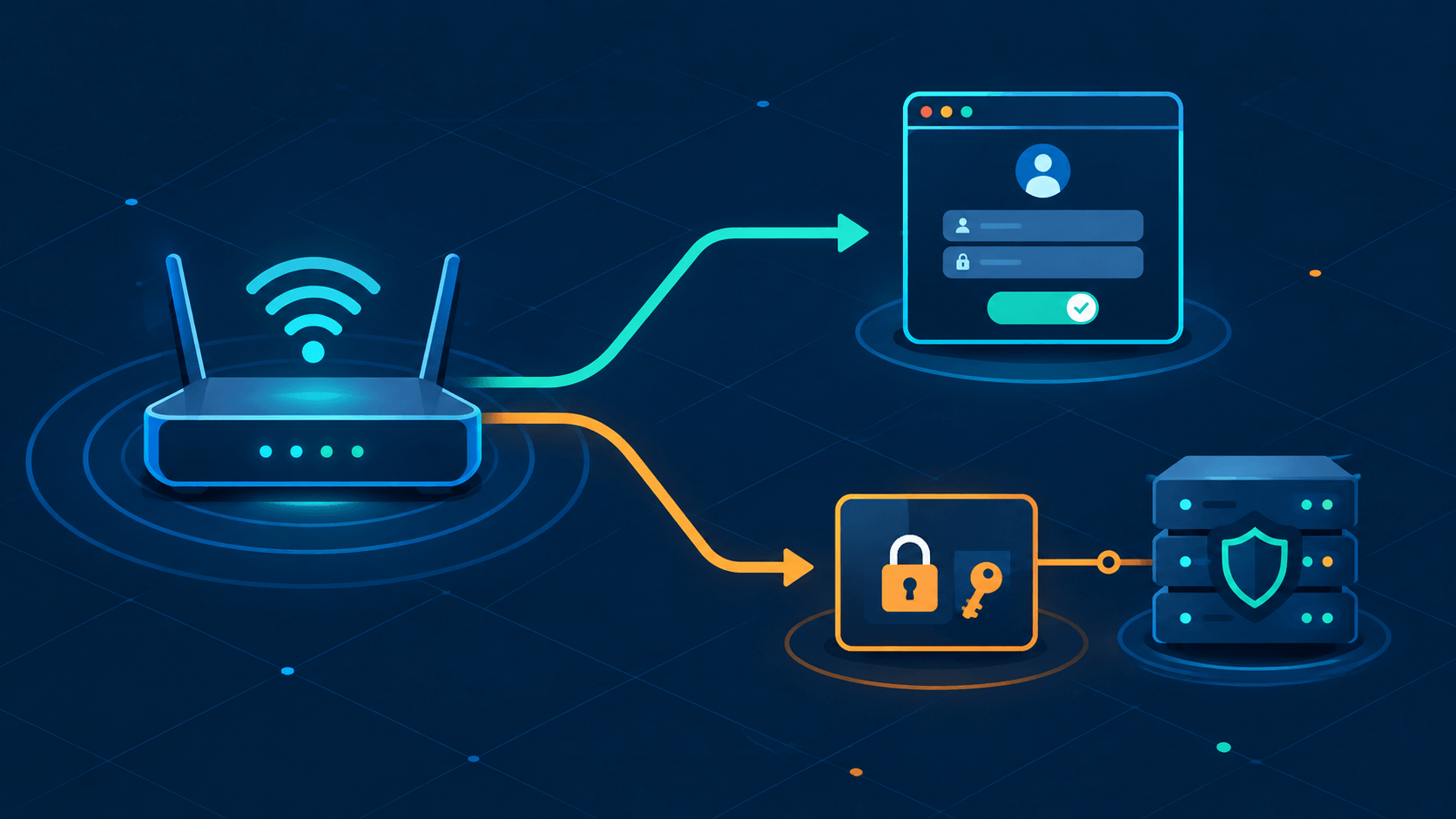
There are only two real ways to hand someone a Wi-Fi connection: show them a web page (captive portal), or check a username and password when the device joins (802.1X). Everything else — vouchers, room numbers, SMS codes, certificates — is a variation on one of those two.
If you run a café, an office, an Airbnb, a workshop, or a small production network, you'll pick one of them sooner or later. This article gives you the full build checklist for both, aimed at the person who actually has to set it up: the homelabber extending their network to guests, or the small-business admin who just inherited three access points and a spreadsheet of passwords.
Path A is the captive portal. Path B is pre-provisioned credentials with expiration, using WPA2/WPA3-Enterprise and a RADIUS server — no splash page at all.
Which Path Fits You
Answer three or four questions and the choice usually makes itself.
| Question | Points to portal | Points to credentials |
|---|---|---|
| Who connects? | Anonymous walk-ins, high turnover | Known people: staff, contractors, students, event attendees |
| Do you need a paper trail of identity? | Only consent/time logs | Per-user identity, revocation, accountability |
| What devices? | Phones and laptops with browsers | Mixed: printers, IoT, consoles, cameras |
| How often does the roster change? | Continuously | In batches (onboarding, events, project teams) |
| Can you push a profile or hand out a card? | No | Yes |
A café wants a portal. An office with 12 staff wants 802.1X. A conference usually wants both: a credential voucher for speakers, a click-through portal for the audience.
The cheap hybrid mistake is the one I see most often: one flat "guest" network with a sticky password shared by everyone, changed twice a year if you're lucky. That gives you the cost of credentials with none of the benefits — no expiration, no revocation, no accountability, and the password leaks to every visitor anyway. If you take nothing else from this article: shared static passwords are the worst of both worlds. Pick a path.
Path A: Captive Portal Setup Checklist
(The mechanics of how portals actually work — captive portal detection, the vendor landscape, CaptiveCrunch in detail — are covered in the companion post, WiFi Captive Portals: The Most Phished Page on the Internet. This is the build list.)
1. Network segmentation — do this before anything else
- [ ] Create a dedicated guest VLAN, separate from your LAN and from your own wireless.
- [ ] Enable client isolation (AP-to-AP and client-to-client) on the guest SSID.
- [ ] Firewall the guest VLAN: allow DHCP, DNS, and internet only. Block RFC1918 ranges so guests can't reach your printers, NAS, or camera NVR.
- [ ] Put the portal appliance itself on a management VLAN with its own restricted admin access.
- [ ] Confirm with a test client:
nmap -sn 192.168.0.0/16from a connected laptop should find nothing but other guests.
Segmentation is the actual security control here. The portal is a toll gate; the VLAN is the fence. If the fence is missing, a compromised portal or a malicious guest hands the attacker your internal network — no clever exploit required.
2. Pick the portal engine
| Situation | Choice |
|---|---|
| OpenWrt router, small venue | openNDS — actively maintained, implements RFC 8910/8908, has a Forward Authentication Service (FAS) API |
| pfSense/OPNsense edge | Built-in captive portal — vouchers, MAC auth, RADIUS backing |
| UniFi or Omada hardware | Vendor controller portal — free, templates are basic, but good enough for click-through |
| Want real NAC (802.1X and portal) | PacketFence — powerful, needs real Linux skills |
| Paid cloud overlay | Cloudi-Fi, IronWiFi, Spotipo — multi-vendor, useful if you'd rather not maintain the portal yourself |
Don't start a new deployment on CoovaChilli or wifidog. They're historical at this point — unmaintained, and you'll be on your own for security patches.
3. Choose the auth method
Ranking from safest to riskiest:
- Click-through / terms of service. No data collected except a consent log. Fine for cafés and events.
- Vouchers. Time-limited codes, printable, revocable. Good for hotels, rentals, conferences.
- Room number / booking lookup. Hospitality only — needs PMS integration or at minimum a CSV.
- Email or phone entry. Works, but now you're holding personal data and inherit GDPR duties.
- Password field. Don't. A portal password is a credential typed into a display-only page — exactly what evil twins and CaptiveCrunch-style gateway compromises are built to harvest. If you need per-user credentials, that's Path B's job, not a portal's.
4. Transport and protocol hygiene
- [ ] Serve the portal page over HTTPS with a valid certificate. Self-signed certs train users to click through warnings — the exact habit phishing needs.
- [ ] Keep the walled garden minimal: the OS connectivity-check URLs plus the portal's own host.
- [ ] Verify captive detection on all four platforms:
- Android:
http://connectivitycheck.gstatic.com/generate_204 - Windows:
http://www.msftconnecttest.com/connecttest.txt - Apple:
http://captive.apple.com/hotspot-detect.html - Firefox (own check):
http://detectportal.firefox.com/canonical.html
- Android:
- [ ] Prefer engines implementing RFC 8910 (portal advertisement via DHCP/RA — Router Advertisements) and RFC 8908 (the actual Captive Portal API); skip WISPr-era behavior unless you need to support genuinely ancient clients.
- [ ] Plan for non-browser devices: IoT gadgets, printers, consoles can't complete the detection dance. Options: MAC authentication bypass (MAB), a separate PSK network for known devices, or move those devices to Path B with per-device accounts.
5. Legal and logging
- [ ] Log connection time, duration, and the consent presented. If you collect emails, that's personal data — define retention (days, not years) and delete on schedule.
- [ ] Under GDPR/ePrivacy, know whether your jurisdiction requires data minimization, a privacy notice at the splash page, or lawful-intercept retention for ISPs/hotels. A small café usually needs a short retention notice; a hotel usually needs more.
- [ ] Serve a terms-of-service text at first login — it's your enforcement basis for bandwidth caps and abuse handling later.
6. Harden the appliance (the CaptiveCrunch lesson)
In 2026, Microsoft Threat Intelligence disclosed a campaign it calls CaptiveCrunch, attributed to Storm-2945 — an operational sub-cluster of Midnight Blizzard (the Russian state-linked group also tracked as APT29/Cozy Bear). Starting around May 2026, Storm-2945 compromised captive portal infrastructure at hotels and conference centers across multiple countries, manipulating DNS and HTTP traffic to serve fake browser updates and cloned Microsoft 365 login pages to connected guests, with the goal of reaching corporate travelers' accounts.
The portal itself was the breach. Not a weak Wi-Fi password, not an unpatched laptop — the gateway appliance that was supposed to be the thing standing between guests and the internet.
- [ ] Change default admin credentials on the portal/gateway device. This is the textbook initial access vector.
- [ ] Patch the gateway firmware on a schedule; portals are internet-adjacent appliances, not set-and-forget boxes.
- [ ] Bind the management interface to the management VLAN or localhost — never the guest network.
- [ ] Turn off UPnP and remote management unless you explicitly need them.
- [ ] Monitor the appliance like a firewall, because it sits in every guest's traffic path.
7. Final portal tests
- [ ] One Android, one iPhone, one Windows laptop, one Mac: the portal should pop without typing a URL manually.
- [ ] After login, confirm the guest cannot ping your NAS or printer.
- [ ] Session timeout works and the user re-authenticates.
- [ ] Decide the failure mode if the portal goes down: fail-closed (no internet) is safer for shared networks; fail-open is fine for a café.
Path B: Credentials With Expiration, No Portal
Here the network does the checking at layer 2/3, before any browser even exists. The device joins a WPA2/WPA3-Enterprise SSID, authenticates its user (or device) against a RADIUS server, and gets a VLAN and internet access — no page, no click.
This is 802.1X. The access point becomes an authenticator that forwards EAP messages to your RADIUS server; the server says yes or no, optionally with an expiration attached.
1. Know the parts
| Piece | Job | Home-lab options |
|---|---|---|
| Authenticator | AP/controller forwards EAP to RADIUS | Any business AP: UniFi, Aruba Instant, MikroTik, TP-Link Omada, OpenWrt hostapd |
| RADIUS server | Checks credentials, returns VLAN | FreeRADIUS 3 (Linux), Windows NPS (domain shops), PacketFence, cloud RADIUS (IronWiFi, JumpCloud) |
| Identity store | Where users live | FreeRADIUS users file, SQL (MariaDB/SQLite), LDAP/AD |
| Onboarding | Getting trust + config onto devices | Apple Configurator/Profile, Windows netsh or Intune, Android manual or EMM profile |
If you want a web UI over FreeRADIUS for user management, daloRADIUS is the classic companion. The core logic still lives in FreeRADIUS — daloRADIUS is just a front end over the same backend. If you're hosting this on a VPS rather than bare metal, FreeRADIUS runs fine in a Podman container; just make sure your UDP ports (1812/1813) are mapped correctly, since RADIUS doesn't tolerate the connection-tracking assumptions some container networking stacks default to.
2. Pick the EAP method
- PEAP-MSCHAPv2 — username/password inside an inner MSCHAPv2 exchange, protected by a server TLS tunnel. This is the "username and password with expiration" option. Every OS supports it. Weakness: the server certificate is the only thing preventing an evil twin from harvesting the password, so the cert has to be right (see step 5).
- EAP-TLS — certificate on both sides. Unphishable, because there's no password to type anywhere. More setup (a small CA, cert issuance, revocation), but it's the correct answer for staff and anything long-lived.
- Avoid EAP-TTLS/PAP unless a legacy system demands it, and avoid EAP-FAST, LEAP, and EAP-MD5 entirely — all have known weaknesses or are effectively abandoned.
A small-business pattern that works well: PEAP passwords for guests and contractors with forced expiration, EAP-TLS certificates for staff. Same RADIUS server, same SSID (or two SSIDs), different policies.
3. FreeRADIUS: users with expiration
FreeRADIUS ships a simple mechanism: the Expiration check-item in the users file. Once a user's login time passes, authentication is rejected until you update the entry.
On Debian/Ubuntu, the file is /etc/freeradius/3.0/mods-config/files/authorization:
# Guest contractor, valid until 30 Nov 2026 23:59:59
alice    Cleartext-Password := "summer-cottage-42"
         Expiration := "30 Nov 2026 23:59:59"

# Event speaker account, expires at end of conference day
speaker07    Cleartext-Password := "keynote-2026"
             Expiration := "15 Mar 2026 23:59:59"
The users file is fine up to a few hundred accounts. Beyond that, move to SQL and use the sqlcounter expiry module, which counts session time and rejects users over quota.
In mods-enabled/counter:
counter expiry {
    counter-name = Expiration
    check-name = Expire
    sqlmod_instance = sql
    filename = "${modconfdir}/${.:name}.conf"
}
And the matching sqlcounter definition — reject once total session time exceeds quota:
sqlcounter expiry {
    counter-name = Session-Timeout
    check-name = Expire
    sqlmod_instance = sql
    formula = "SUM(session_length) < 3600"
    key = "User-Name"
}
With SQL backing, a voucher batch becomes a script: insert rows into radcheck with Expiration values, one per attendee, each a random password you print on a card. A cron job deletes expired rows, which also stops credential reuse after the event.
A few practical details people forget:
- FreeRADIUS restarts or
radclientreloads pick upusersfile changes; SQL takes effect immediately. Expirationuses the RADIUS server's local time. Set the timezone correctly, or vouchers expire at surprising hours.- Reject responses should be quiet and uniform. Pair with
fail2banusing the FreeRADIUS filter so a spraying attacker gets rate-limited, not a detailed error. - Test before go-live:
radtest alice summer-cottage-42 localhost 0 testing123should returnAccess-Accept; after the expiry date,Access-Reject. - Forcing periodic password change:
Max-Days := 90with thepasswdmodule, or handle it in your provisioning script.
4. AP and VLAN wiring
- [ ] Set the SSID to WPA2/WPA3-Enterprise (a.k.a. WPA2/WPA3-802.1X). Enable WPA3 in transition mode so old clients still connect with WPA2.
- [ ] Point the AP at your RADIUS server (IP + shared secret). The shared secret is not a user credential — make it long and random, 32+ characters.
- [ ] Return VLANs from RADIUS (
Tunnel-Private-Group-ID) so guests land on the guest VLAN and staff on the office VLAN, from one SSID. - [ ] Enable 802.1X MAB fallback only if you must support printers/IP phones; know that MAC addresses are trivially spoofed.
- [ ] Check PMF (802.11w): required for WPA3, recommended for WPA2. Some very old clients break with PMF required — test before rolling out broadly.
5. Server certificate — the make-or-break item
With PEAP, the client trusts a server certificate and everything inside the tunnel is safe. If the client accepts any certificate, an evil twin AP can present its own cert, capture the MSCHAPv2 exchange, and crack or relay the password. This is the exact attack pattern used against university WPA-EAP networks for years.
- [ ] Issue a server certificate from an internal CA or a real public CA, with the SAN matching what clients look for. For Android, the SAN should match the RADIUS hostname you configure — commonly
hotspot.example.com(the "ANQP/SSP" convention) or your actual FQDN. - [ ] Push the CA certificate to devices as part of onboarding: configuration profile on iOS/macOS, certificate import or EMM profile on Windows, CA pinning in the Android profile. "Do not validate" is never acceptable.
- [ ] Keep the certificate's lifetime sane and track renewal — an expired RADIUS cert takes down all Wi-Fi auth at once.
6. Onboarding cheat sheet
- iOS/macOS: build a Wi-Fi profile with EAP type PEAP, identity, password, and the CA cert attached; distribute via MDM, Apple Configurator, or email install.
- Android: Settings → Wi-Fi → the SSID → EAP method PEAP, phase-2 MSCHAPV2, CA certificate = the pushed cert or user-installed CA. Consumer Android without EMM is the fussiest platform — expect support tickets.
- Windows:
netsh wlan add profilewith an XML profile, or deploy via Intune/GPO. Domain-joined machines can pull the CA from AD automatically. - Linux:
wpa_supplicantconfig, in/etc/wpa_supplicant/wpa_supplicant.conf:
network={
    ssid="Office-Staff"
    key_mgmt=WPA-EAP
    eap=PEAP
    identity="alice"
    password="..."
    ca_cert="/etc/ssl/certs/internal-ca.pem"
    phase2="auth=MSCHAPV2"
}
7. Hardening and lifecycle
- [ ] RADIUS shared secrets: unique per AP, rotated yearly, never reused from a vendor default.
- [ ] Enable RadSec (RADIUS over TLS) if RADIUS traffic ever crosses an untrusted link — between sites, or to a cloud controller.
- [ ] Turn on accounting (
accounting = yes) if you want session logs for accountability; it also gives you the data to expire long sessions. - [ ] Enforce session limits:
Session-TimeoutandIdle-Timeoutin the users file or SQL profiles. - [ ] Revoke fast: one
radclientdelete or SQL row removal kills access at the next auth attempt. For EAP-TLS, revoke the certificate and check OCSP, or use short-lived certs instead. - [ ] Monitor rejects. A spike of Access-Rejects is either a broken profile rollout or a spraying attack — worth knowing which.
- [ ] Keep WPA3 transition mode until your fleet is clean, then consider WPA3-only for the staff SSID (forward secrecy, protected management frames, the 192-bit enterprise crypto suite in WPA3-Enterprise).
Side-by-Side
| Captive portal | 802.1X credentials | |
|---|---|---|
| Layer | Web page after join | Auth at join |
| Works without a browser | No (needs MAB fallback) | Yes |
| Per-user accountability | Weak (MAC + consent log) | Strong |
| Revocation | Kill session/MAC | Delete account or cert |
| Setup effort | Low–medium | Medium–high (RADIUS + PKI) |
| Ongoing effort | Patch appliance, moderate | Low once stable |
| Evil-twin exposure | Phishable page | Server cert protects passwords; EAP-TLS is unphishable |
| Typical stack | openNDS / pfSense / UniFi portal | FreeRADIUS + AP with 802.1X |
| Best for | Public guests, events | Staff, contractors, IoT, events with known rosters |
They coexist in most real deployments: one SSID with a portal for the public, one Enterprise SSID for people with accounts.
Common Mistakes
- Expired credentials still work. FreeRADIUS caches the
usersfile until reload; SQL changes need the right module config. Test withradtestafter expiry, not before. - The "Do not validate" checkbox. The easy fix for Android certificate errors hands evil twins your passwords. Fix the SAN instead.
- One shared PSK "just for the staff." It never expires, never revokes, and ends up in a note-taking app within a month.
- Guest VLAN with no isolation. Portal or no portal, a guest who can reach your NAS has defeated the whole point.
- Self-signed portal or RADIUS certificates. Every warning you train people to click through is a warning they'll click through for an attacker, too.
- WPA3-only from day one. Old laptops, Kindles, and cheap IoT drop off the network and the helpdesk explodes. Use transition mode, tighten later.
- Forgetting accounting and timezone. "Valid until 23:59 CET" evaluated in UTC produces angry guests at the wrong hour.
- No monitoring on the RADIUS server. It's now an authentication dependency — when it dies, nobody gets on the Wi-Fi. Run it on two hosts, or accept the outage risk knowingly.
- Collecting more than you need. Emails and phone numbers at a portal are liabilities with retention clocks attached — don't ask for data you have no plan to use.
Final Thought
The portal and the credential are solving different problems. A portal answers "may this stranger use my network today, and did they agree to my terms?" Credentials answer "which specific account is on my network, and when does its right to be there end?" Small networks get into trouble when they reach for one while actually needing the other — usually a shared password standing in for a guest system, with no expiration and no way to cut one person off.
Build the VLAN fence first, because that's what survives a compromised portal or a leaked password. Then pick your path: a hardened, HTTPS, no-password portal for the public; FreeRADIUS (or equivalent) with per-user expiration for anyone you can name. Both checklists above are deliberately unglamorous. That's the point — the deployments that go wrong are usually the clever ones.
Further Reading
- WiFi Captive Portals: The Most Phished Page on the Internet — mechanics, vendor landscape, CaptiveCrunch in detail
- FreeRADIUS documentation
- daloRADIUS
- RFC 8910 — Captive-Portal Identification in DHCP and Router Advertisements (RAs)
- RFC 8908 — Captive Portal API
- WPA3 Specification (Wi-Fi Alliance)
- PacketFence · openNDS