The first article in this series explained how Syncthing works — block-level peer-to-peer convergence, cryptographic device identity, encrypted untrusted devices. This one turns that theory into an operational setup: how to run Syncthing on hardware you control, why a dedicated always-on hub changes the reliability math, and which settings matter once the cluster grows past two laptops.
Scope note: this is a practical guide based on the official Syncthing documentation, the official Docker README, the LinuxServer image docs, and community deployment patterns as of October 2026. Exact menu labels can shift slightly between releases; the underlying settings live in config.xml and stay stable.
The Architecture Question: Hub, Mesh, or Both
Before installing anything, decide the shape of the cluster. The theory article covered two topologies; in practice most self-hosters end up combining them.
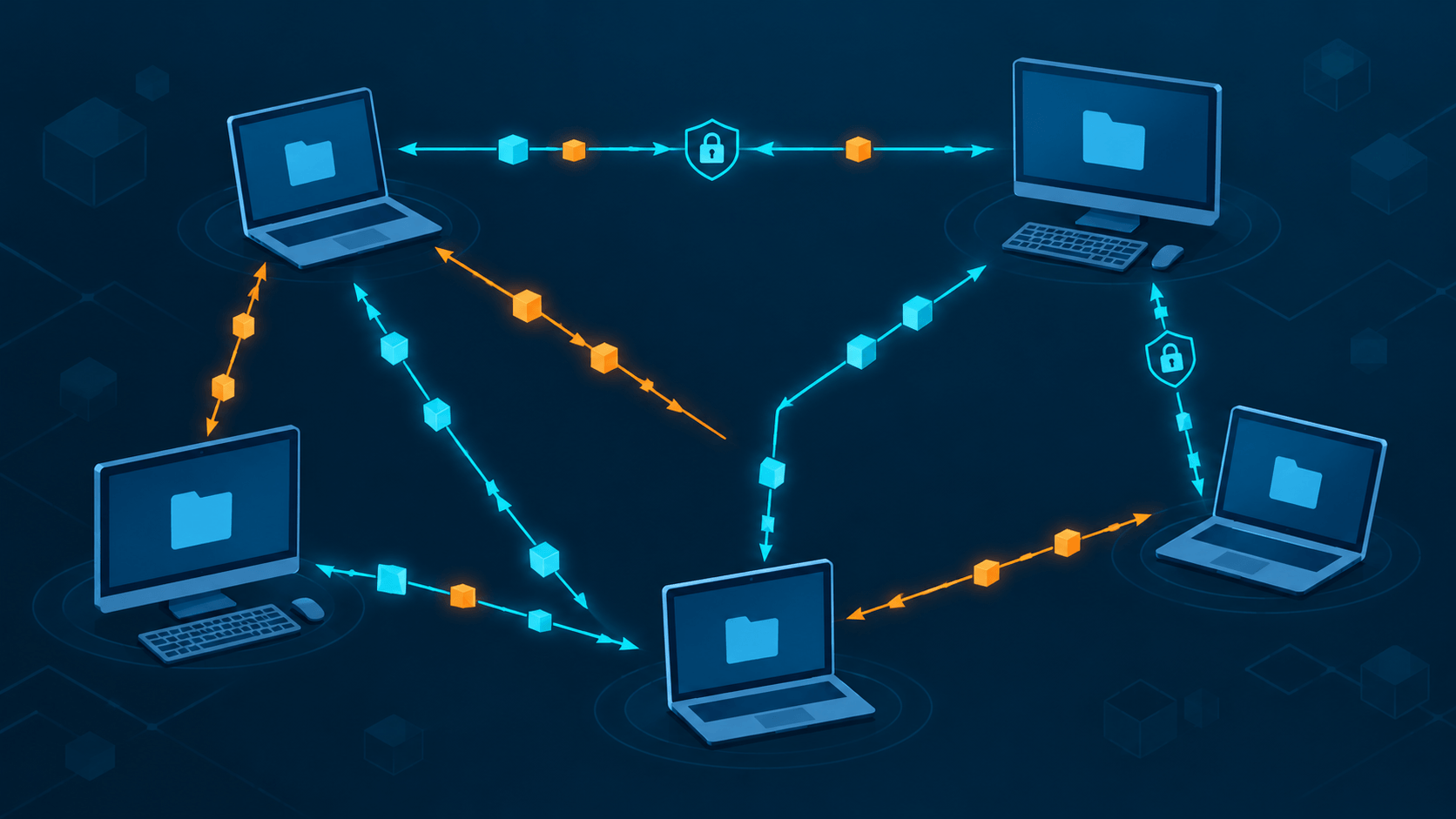
Full mesh works while every device shares a lot of uptime with every other device — two or three computers on the same desk. As soon as a phone, a travel laptop, and a workstation enter the picture, direct pairwise availability becomes rare, and sync latency becomes a function of coincidence.
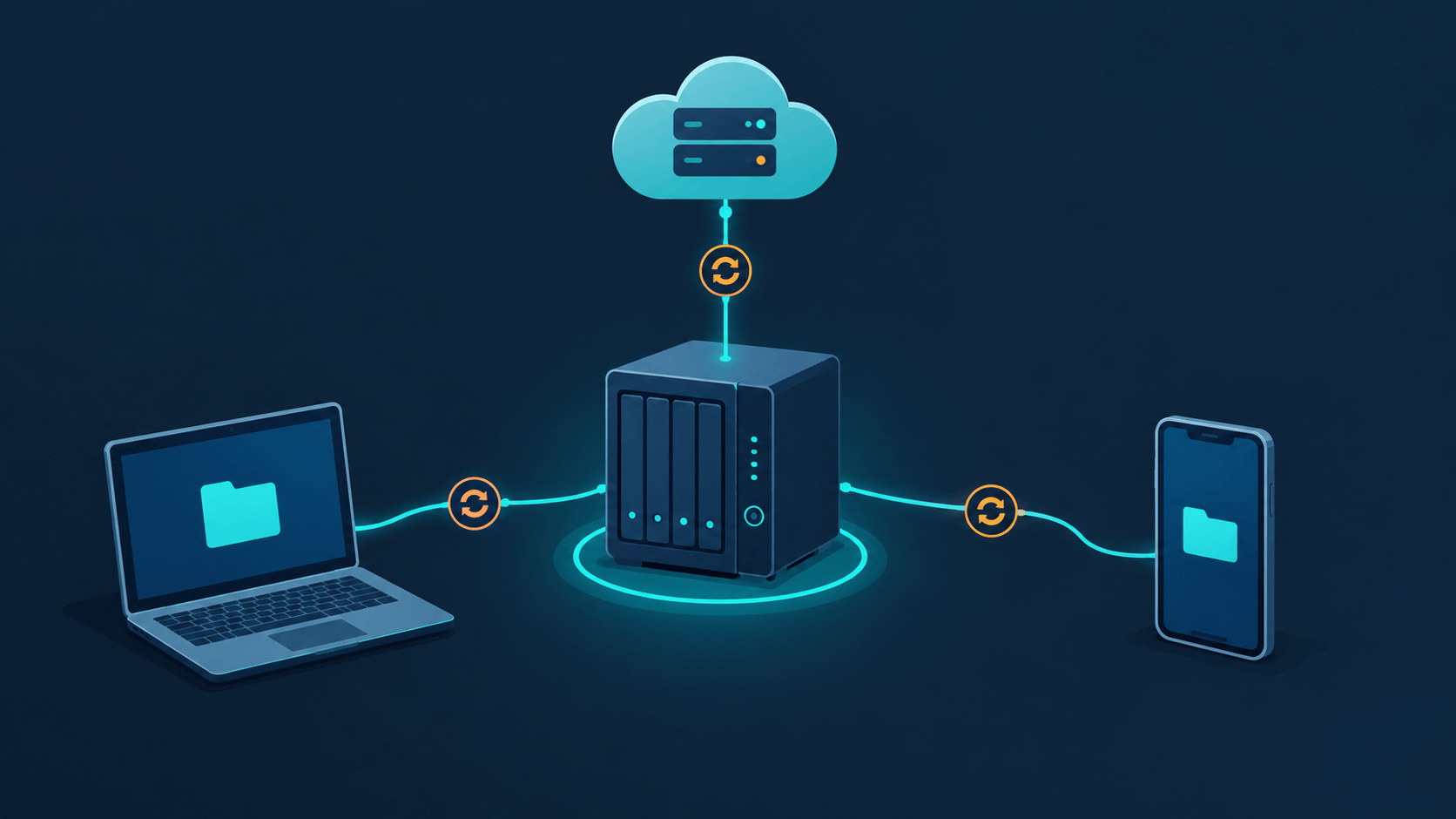
Hub and spoke fixes that by designating one always-on member: a NAS, a Raspberry Pi, a mini PC, a cheap VPS. Every other device pairs with the hub. Spokes never need to be online together — a change on the laptop is received by the hub immediately, then delivered to the phone the next time the phone syncs. The hub becomes the natural place to enable versioning and, where needed, encrypted off-site backups.
Practical rule of thumb: if you already run a server at home (NAS, Proxmox box, NUC), that's your hub. If everything you own is laptops and phones, a Raspberry Pi 3/4 or a low-cost VPS with 10–20 GB free disk is enough. Syncthing itself is a lightweight Go daemon — disk and reliable uptime matter far more than CPU or RAM.
Install Options: Native vs Container
Syncthing runs anywhere Go runs. For a hub, two approaches dominate.
Native package / systemd
Distro packages exist (Debian/Ubuntu via apt.syncthing.net, Arch in the official repos, others in community repos). On a server, prefer the system service so Syncthing starts even when nobody is logged in:
sudo systemctl enable --now [email protected]
On a desktop, the user service is the better fit — it starts after login, stops cleanly with the session, and avoids a second daemon grinding when the machine is asleep:
systemctl --user enable --now syncthing.service
loginctl enable-linger youruser   # optional: start at boot without login
The system service runs headless with no browser pop-up; the first-time web GUI is still served on http://127.0.0.1:8384 by default.
Docker / Podman
Containers are the common choice for NAS and Proxmox environments. Two images matter: the official syncthing/syncthing and the popular LinuxServer variant lscr.io/linuxserver/syncthing (adds PUID/PGID user mapping and regular base-image updates).
A minimal hub-style compose file (LinuxServer image, bridge networking):
docker-compose.yml
services:
  syncthing:
    image: lscr.io/linuxserver/syncthing:latest
    container_name: syncthing
    hostname: syncthing-hub
    environment:
      - PUID=1000
      - PGID=1000
      - TZ=Etc/UTC
    volumes:
      - /srv/syncthing/config:/config
      - /srv/sync:/data1          # mount your real sync folders here
    ports:
      - "8384:8384"               # Web GUI
      - "22000:22000/tcp"         # TCP sync
      - "22000:22000/udp"         # QUIC sync
      - "21027:21027/udp"         # local discovery
    restart: unless-stopped
Networking caveat that matters: Docker's default bridge network hides the container behind its 172.17.0.0/16 subnet. Local discovery broadcasts don't cross that boundary cleanly, and peers may fall back to relays — slow, unnecessary on a LAN. For a home hub, network_mode: host is usually the better choice: Syncthing sees the real interface, discovery works, and you manage listening addresses inside the Syncthing config instead of in compose port mappings. Host mode also means the GUI is exposed on the NAS LAN address — set a GUI password immediately (next section).
Official-image compose variant with host networking:
docker-compose.yml
services:
  syncthing:
    image: syncthing/syncthing:latest
    hostname: syncthing-hub
    environment:
      - PUID=1000
      - PGID=1000
      # - STGUIADDRESS=          # uncomment (leave blank) to fall back to the config-file/GUI setting
    volumes:
      - /srv/syncthing/config:/var/syncthing
      - /srv/sync:/var/syncthing-sync
    network_mode: host
    restart: unless-stopped
The official image's home directory is /var/syncthing by default — config and index database live there unless you point fsPath elsewhere. You can still bind-mount additional host paths at any container path for your actual sync data, as the second volume line above does.
Bind-mount sync data to real host paths you control. Never bury terabytes of photos inside an anonymous Docker volume — you want the files visible to snapshots, other backup tools, and your own ls.
Podman note: both images run fine under Podman — swap docker compose for podman-compose (or generate a Quadlet/systemd unit with podman generate systemd), and use --network host for the host-networking variant. PUID/PGID still apply the same way in the LinuxServer image; just confirm the mapped UID/GID exists in your container's user namespace if you're running fully rootless.
First Five Minutes: Lock It Down
A fresh Syncthing instance has an unauthenticated web GUI on port 8384. Anyone who can reach that port can reconfigure folders, add devices, and read or rewrite anything the daemon touches. On a laptop bound to 127.0.0.1 that's fine; on a hub with host networking or a LAN-exposed port it is not.
Do this before pairing anything:
- Open the GUI → Actions → Settings → GUI.
- Set a GUI username and password.
- Enable HTTPS if you'll ever reach the GUI beyond localhost (a self-signed certificate is fine for personal use).
- Leave the GUI address as-is for pure-LAN use, or bind it to a management interface / reverse proxy if you front it with Caddy or Nginx later.
- Optionally disable global discovery and relays if your posture is strict LAN/VPN-only (covered below).
Same discipline on every desktop client that might listen beyond loopback. An unsecured GUI and REST API is equivalent to giving local processes full control of your synced files.
Also note: first run generates the Device ID and configuration under the config folder (/config in the container, or ~/.config/syncthing natively, depending on install). Back that folder up, or at least record the Device ID somewhere offline — you'll need it for pairing after a rebuild.
Pairing and Folders
Pairing is symmetric by design. On the hub GUI: Add Remote Device, paste the client's Device ID (shown under Actions → Show ID on the client), give it a clear name like laptop-work. On the client, add the hub the same way, or accept the pending request when it appears. Only mutual trust establishes a connection — a stolen Device ID can't force its way in.
Then share folders:
- On the hub: Add Folder, choose a stable folder ID (
photos,notes,documents-backup— IDs are permanent, labels are cosmetic). - Set the path to the host directory you mounted (e.g.
/data1/photosin the container,/srv/sync/photosnatively). - Under Sharing, tick the devices that should receive it.
- For each device, pick the folder type:
| Role | Folder type | Effect |
|---|---|---|
| Hub holds everything | Send & Receive | Hub is a full peer |
| Workstation publishes configs | Send Only on workstation, Receive Only on hub/nodes | One-way truth |
| Phone only receives media drops | Receive Only | Protects phone battery and disk |
| Cloud/VPS stores blobs it must not read | Receive Encrypted on that device | Ciphertext only |
Ignore patterns (.stignore) cut noise: exclude @eaDir, .DS_Store, node_modules, *.tmp, cache directories. The ignore file uses filepath match syntax; keep a small curated list rather than a mega-regex you never audit.
Avoid syncing your Syncthing config folder itself inside a two-way shared folder. It's a well-documented community pitfall: the config directory holds config.xml, certificates, and the index database, and syncing it read-write between two running instances can corrupt state or collide Device IDs. If you want the config backed up, share that directory Send Only to a backup location, never bidirectional.
Versioning on the Hub
Enable versioning on the device that acts as the safety copy — almost always the hub, not the phone, not the laptop you reimage monthly. Per-folder, per-device: Folder → File Versioning.
Syncthing ships four strategies; these three are the ones that matter in practice:
- Trash Can — every replaced or deleted file is moved to
.stversions, overwriting whatever was there before for that file. It's a single-generation safety net, not a history — pair it with the optional cleanout-days setting to auto-purge old entries after N days. Good as a minimal "oops" catch for documents. - Simple — keeps a configurable number of old versions per file (the "Keep Versions" setting), each timestamped. This is the one to reach for if you actually want several generations of a file, not just the last one.
- Staggered — time-bucketed retention (roughly: every 30 seconds for the first hour, hourly for the first day, daily for 30 days, weekly out to a configurable max age). Good for notes and active project trees where you might need to roll back further than "yesterday."
- (External versioning also exists — it hands the replaced file to a shell script, so you can wire it to
restic,borg, or a custom archive tree when retention must outlive the sync dataset.)
Remember the asymmetry from the theory article: versioning triggers only on changes received from other devices. A local mistake on the hub itself is not archived. Versioning on the hub protects you when a compromised or confused laptop mass-deletes or encrypts a folder — the hub keeps the .stversions copies you can restore manually. It's a seatbelt, not a backup. Pair it with real backups of the hub's data directory (snapshots, restic to another disk, off-site).
Versioning does not work as a self-service restore mechanism on Receive Encrypted devices — versions stored there are ciphertext and can only be decrypted offline with the syncthing decrypt command, pointed at the encrypted folder and run on a trusted machine. Plan restores through a trusted device, not the VPS itself.
Untrusted Off-Site: Ciphertext Hub on a VPS
One of the most self-hoster-relevant patterns: off-site redundancy without trusting the off-site machine.
Setup flow:
- On your trusted workstation/hub, add the VPS as a normal device.
- Edit the device → Advanced → Untrusted. Marking a device untrusted blocks any connection where you forget to set a password on a shared folder — it's a safety net against an accidental plaintext share, not the encryption mechanism itself.
- Share the folder with it and set a strong encryption password at share time. This password, combined with the folder ID, is what actually derives the encryption key.
- On the VPS side, you still need to set that folder's type to Receive Encrypted yourself when accepting the share — it is not selected automatically. Once set, the VPS accepts the folder at a path on a large disk and stores only encrypted blocks under opaque directory names (it doesn't replicate your original file/folder hierarchy at all).
What this buys you: the VPS provider, a VPS compromise, or a stolen backup tarball of the VPS disk yields ciphertext only. Your trusted devices re-serve and re-hash normally; the VPS can still relay blocks between two trusted peers that both know the password. What it costs: recovery requires the password and the folder ID (the ID is stored in the folder marker on a trusted device, but store both in your password manager or offline vault, not only on the VPS). Losing either makes the ciphertext permanently useless — there's no provider-side "reset password."
Combine with versioning on the VPS for an extra retention layer of ciphertext, knowing the restore path is an offline syncthing decrypt, not an in-place un-delete.
Connectivity Hardening and Network Posture
Defaults are tuned for convenience (local discovery on, global discovery on, relays on, NAT traversal on). For a self-hosted hub you can tighten this in Settings → Connections.
LAN-first home setup (recommended baseline):
- Keep local discovery on.
- Keep global discovery on if devices leave the house; if everything is permanently on one LAN/VPN, turn it off.
- Keep relays on unless you've port-forwarded 22000 on at least one side; once a direct path exists, relays are abandoned automatically by priority.
- Bind the sync listen address to
default(all interfaces) on the hub; on laptops that travel, leave defaults so they can act as either side of a connection.
VPN-only / privacy-maximal setup:
- Disable global discovery and relays.
- Point every device's address entry at the hub's VPN IP (WireGuard, Tailscale, Netbird — any stable overlay).
- Optionally set the listen address to the VPN interface only.
- Result: no public discovery footprint, no relay third parties, sync only inside your overlay. Tailscale additionally solves the NAT problem so direct WireGuard paths usually beat even LAN relay fallbacks.
Port-forwarding one hub's 22000 (TCP and UDP — TCP carries the classic sync protocol, UDP carries the QUIC variant) is enough for the whole fleet to get direct paths when away from home — the hub becomes the rendezvous point. Local discovery also needs 21027/UDP on the LAN. If your ISP's CGNAT blocks inbound, rely on relays (slow but functional), or put the hub behind Tailscale.
Operations: Watching, Updating, Troubleshooting
Health checks that matter:
- Folder state should read Up to Date on every trusted device; Scanning or Syncing should be transient.
- Recent Changes view shows what the cluster actually saw — useful when a user claims "my file never synced."
- Disk space: set a sensible Minimum Free Space per folder; Syncthing is designed to stop before it fills the last byte of a disk.
Updates: keep the daemon current — security fixes land in regular releases. Distro packages via your repo manager; containers via docker compose pull && docker compose up -d (or the Podman equivalent). LinuxServer images also pair well with Diun or similar update notifiers. Avoid in-container self-upgrade; recreate the container instead.
Common self-hoster issues and the theory behind them:
| Symptom | Usual cause | Fix direction |
|---|---|---|
| Devices see each other but stay on relay | NAT, both sides behind symmetric NAT, no forwarded port | Forward 22000 on hub, or use Tailscale |
| Container discovery fails, LAN only via IP works | Bridge network swallows UDP broadcast | Switch to host networking or set static addresses |
| One file loops as conflict copies | Clock skew, two-way edit on synced editors, case-only renames across OS | Fix time sync; narrow folder types; review ignore rules |
| Hub full, sync stalls | Disk pressure | Clean .stversions, raise disk, pause folders |
| Mass unexpected deletes | A compromised or misconfigured spoke | Pause folder cluster-wide immediately; restore from hub versioning / backup |
.stfolder marker missing, folder "failed" |
Marker deleted or wrong path mounted | Recreate marker or fix mount; never delete it in normal ops |
That last row deserves emphasis: every synced folder contains a hidden .stfolder marker. It's how Syncthing proves the path is really a sync folder and not, say, a dead mount showing an empty directory — a classic way to accidentally delete everything cluster-wide. Don't remove markers, and don't "clean up" the hidden file.
Cost and Hardware Reality Check
Numbers that show up in real deployments, directional rather than gospel:
- A Raspberry Pi 3B+ with an SSD over USB is sufficient for document-scale folders (tens of GB); 1 Gbps LAN plus a Pi 4/5 or NUC-class box handles multi-TB photo/video trees comfortably.
- Container image size is modest (tens to low hundreds of MB); steady-state memory commonly sits in the low hundreds of MB during large initial syncs, far less when idle.
- Initial full sync of a large library is disk- and LAN-bound, not CPU-bound; subsequent deltas are typically tiny.
- VPS off-site encrypted hub: any small plan with enough disk beats a 2 TB Dropbox subscription on pure storage math, with the trade-off that you own operations.
No subscription renewals, no per-seat licensing, no bandwidth quota emails — the ongoing cost is electricity, disk, and the discipline of keeping one machine online and backed up.
When Not to Self-Host Syncthing
Honest boundaries, restated from the theory article with operational teeth:
- You need always-available remote access from arbitrary devices with no local copy — you want cloud storage semantics, not sync. Pair Syncthing with a proper file server or pick a different tool.
- You need multi-user sharing with per-user permissions and a web UI for non-technical collaborators — Nextcloud, Seafile, or a network share fits better.
- You need proven point-in-time backups — Syncthing replicates, including damage. Keep restic/borg/ZFS snapshots independent of the sync mesh.
- You refuse to run any always-on node and your devices rarely overlap uptime — sync will feel broken even though the protocol is fine. Accept the hub model or reconsider the use case.
Putting the Series Together
Part one established the model: no server, block-level convergence, cryptographic identity, encrypted untrusted peers. Part two turns that into a shape most self-hosters converge on — one always-on hub with versioning enabled, laptops and phones as spokes, an optional ciphertext VPS for off-site, discovery and relays tuned to your network posture, and a GUI password set before the first coffee.
The design goal is not to recreate Dropbox. It's to own the sync layer: files live on hardware you chose, move over TLS between keys you control, and keep converging while you sleep — no cloud account required.
Further reading lives where the protocol is documented in full: the official docs at docs.syncthing.net (FAQ, Understanding Synchronization, File Versioning, Untrusted Devices, Block Exchange Protocol) and the man pages in the repository.
Part 1 of this series: "Inside Syncthing: The Protocol Theory Behind Dropbox-Free File Sync"